Task Solving Guide
How to solve engineering tasks inside the NeqSim repo using AI, while simultaneously developing the physics engine — and making every solution findable for the next session.
The workflow adapts to any scale — from a 5-minute property lookup to a multi-discipline Class A field development study. You describe the task, the agent decides how deep to go based on what you ask for.
How this guide is organised
| Part | Sections | Read it when |
|---|---|---|
| 1. Solve a task | AI-Supported Task Solving to Making Solutions Reusable | You want one task solved and reported |
| 2. Keep a task alive | Continuous Task Solving | A finished task must keep improving as new data arrives, or must be solved iteratively until the goal is met |
| 3. Reference | Common Pitfalls to Related Documentation | You need agents, quick starts, other AI tools or PR steps |
Part 2 builds on Part 1: a living task is an ordinary task folder with a
continuous/ folder added.
AI-Supported Task Solving While Developing
Every engineering task follows a 3-step workflow that combines AI research
tools with NeqSim’s physics-based API. Each task gets its own folder in
task_solve/ (gitignored — local working area only).
 STEP 1                    STEP 2                    STEP 3
 Scope & Research          Analysis & Evaluation     Report

 Define standards,         Build simulation,         Word + HTML
 methods, deliverables     run, validate, iterate    deliverables

 + task_spec.md            NeqSim API +              python-docx
 + literature review       GitHub Copilot            + HTML template
How to Start a New Task
Recommended — let Copilot do everything:
Open VS Code Copilot Chat and type:
@solve-task JT cooling for rich gas at 100 bara
The agent creates the folder, fills in the task specification, researches the topic, builds and runs a simulation, validates results, and generates Word + HTML reports — all in one session.
Alternative — manual step-by-step:
- Run the setup script (auto-creates
task_solve/on first use):neqsim new-task "JT cooling for rich gas" neqsim new-task "TEG dehydration sizing" --type B --author "Your Name" neqsim new-task "field development study" --type G --author "Your Name" - Open the generated README — it has AI prompts ready to paste for each step
- Work through Steps 1–3, saving artifacts in the corresponding subfolder
- When done, promote reusable outputs and optionally create a PR:
- Tests →
src/test/java/neqsim/ - Notebooks →
examples/notebooks/ - API extensions →
src/main/java/neqsim/ - Task log entry →
docs/development/TASK_LOG.md - Documentation fixes and improvements → include in the same PR (wrong API signatures, missing docs, better examples, new warnings)
- Tests →
New user? The script is in
devtools/(tracked in git), so it’s available immediately aftergit clone. It createstask_solve/automatically on first run.
Default Task Destination
Set a user-wide parent folder once, shared by future sessions and NeqSim clones:
neqsim --set-task-root "D:/Engineering Tasks"
neqsim --show-task-root
neqsim new-task "My study"
Each new task gets its own dated subfolder. The destination precedence is:
--task-root PATHon a command (also works with--setupand--list).- The
NEQSIM_TASK_ROOTenvironment variable. - The saved user default in
~/.neqsim/task_defaults.json. <NeqSim repository>/task_solvewhen no override exists.
Relative paths are resolved against the current working directory; saved defaults
are stored as absolute paths. Spaces, ~, and environment-variable expansion are
supported. To put one task in the folder the terminal is already in, pass
--task-root .. To make every new task land in whatever folder the terminal is in,
save the follow-the-terminal default:
neqsim --set-task-root cwd
That stores ".", which is re-resolved on each command, so the destination changes
with the terminal. Agents run commands from a workspace folder, so this makes the
task land next to the code being worked on. Use an absolute default instead when
tasks must always collect in one place regardless of the terminal.
Default Report Template
Set your organisation’s Word template once and every task report is built from it:
neqsim --set-report-template "C:/Users/you/Documents/company report template.docx"
neqsim --show-report-template
The Word report then inherits the template’s styles, fonts, theme colours, page setup, headers, and footers. The template precedence is:
python step3_report/generate_report.py --template "PATH"for a single run.- The
NEQSIM_REPORT_TEMPLATEenvironment variable. - The saved user default in
~/.neqsim/task_defaults.json. - Built-in styling when nothing is configured.
The template’s own body text is dropped so the report starts on a clean page; pass
--keep-template-content to keep a template cover page or boilerplate. Use
--no-template to ignore the setting for one run, and neqsim --reset-report-template
to remove it. A configured template that is missing or is not a .docx/.dotx file
is reported as an error rather than silently ignored, so an unbranded report is never
issued by accident. Paper.docx keeps journal formatting and ignores the template.
Tasks created before the template support was added carry their own older copy of
generate_report.py. Run the canonical generator against them instead of copying files around:neqsim report "C:/path/to/task_solve/2026-04-21_my_task" neqsim report . # the task folder you are standing in neqsim report . --paper --no-template # flags are forwarded to the generator
neqsim reportalways runsdevtools/task_template/step3_report/generate_report.py, so a fix to the generator reaches every task folder, old or new. The same effect is available directly with--task-dir PATHor theNEQSIM_TASK_DIRenvironment variable.
To remove the saved default, run neqsim --reset-task-root. The same controls are
also available on the subcommand as neqsim new-task --set-default-folder/--show-task-root/--reset-default-folder.
This does not move or delete existing tasks, and an environment override still applies.
Invalid settings or inaccessible destinations must be corrected, not silently ignored.
Agents must treat the task_solve/ examples in this guide as the resolved parent
folder. Pass the created absolute task path to all child agents, artifact writers,
validators and external tools. Existing tasks are resumed in their original folder.
For notebooks outside the source tree, set NEQSIM_PROJECT_ROOT to the NeqSim
repository and, where needed, NEQSIM_TASK_DIR to the active dated task folder.
An external destination is not automatically gitignored by another repository;
keep private task data out of commits. Tools that do not expose an output-path
option are not automatically redirected by this setting.
Task Folder Layout
task_solve/
├── README.md                                        ← workflow overview
├── TASK_TEMPLATE/                                   ← copy this to start
│   ├── README.md                                    ← task checklist
│   ├── study_config.yaml                            ← intake, document inputs, scale, notebooks, report depth, quality gates
│   ├── step1_scope_and_research/task_spec.md         ← standards, methods, deliverables
│   ├── step1_scope_and_research/notes.md             ← literature, sources
│   ├── step1_scope_and_research/references/          ← PDFs, standards, lab reports
│   ├── step2_analysis/                               ← simulations, notebooks
│   ├── step2_analysis/notes.md                       ← validation log
│   ├── step3_report/generate_report.py               ← produces Word + HTML + Paper
│   └── figures/                                      ← all saved plots + extracted PDF pages
└── 2026-03-07_jt_cooling_rich_gas/                   ← example real task
See task_solve/README.md for the full workflow description and details.
Adaptive Complexity — One Workflow, Any Scale
The same workflow handles everything. The agent (or you) decides the depth based on the task:
| Scale | Example | Task Spec | Notebooks | Report |
|---|---|---|---|---|
| Quick | “density of CO2 at 200 bar” | Minimal — just EOS + condition | 1 notebook, few cells | Brief summary |
| Standard | “TEG dehydration for 50 MMSCFD” | Full — all sections filled | 1 complete notebook | Word + HTML |
| Comprehensive | “field development per NORSOK” | Detailed — all standards with clause numbers | Multiple numbered notebooks | Full HTML with navigation |
You control depth through your request — mentioning standards, deliverables, and acceptance criteria naturally increases analysis depth.
Explicit Study Configuration
For repeatable deep studies, configure task depth explicitly instead of relying
only on prompt wording. Every new task folder includes study_config.yaml; it
is the input contract for scale, notebook plan, report detail, and quality
gates. The task solver reads it before creating notebooks or reports.
Use CLI options for the common cases:
# Comprehensive study with detailed report and five planned notebooks
neqsim new-task "field development study" --type G --scale comprehensive --report-depth detailed --notebooks 5 --intake-pause always

# Explicit notebook filenames
neqsim new-task "flow assurance study" --type G --scale comprehensive --notebooks "01_basis.ipynb,02_hydrates.ipynb,03_pipeline.ipynb,04_risk.ipynb"

# Fully authored configuration file
neqsim new-task "concept selection" --type G --config-file path\to\study_config.yaml
The generated study_config.yaml has this structure:
study:
  title: "Field development study"
  task_type: "G"
  scale: comprehensive      # auto | quick | standard | comprehensive
  mode: development         # auto | screening | design | development
  aace_class: 2
  fel_stage: FEL-3
  deliverable_mode: report-first

intake:
  pause_after_folder_creation: always  # auto | always | never
  ask_for_missing_info: true
  allow_user_file_drop: true
  confirm_before_notebooks: true

notebooks:
  required: true
  execution_required: true
  execution_engine: neqsim_runner  # neqsim_runner | interactive | auto
  runner_mode: execute             # execute | script
  runner_max_retries: 3
  runner_timeout_seconds: 3600
  runner_max_parallel: 1           # JVM-heavy jobs should stay serial by default
  runner_merge_results: true       # Merge multi-notebook results.json updates
  require_successful_jobs: true    # Report gate warns on failed/timed-out jobs
  isolated_subprocess: true
  minimum_count: 5
  plan:
    - file: 01_scope_basis_and_fluid.ipynb
      purpose: Define basis, fluid, EOS, and assumptions.
    - file: 02_process_simulation.ipynb
      purpose: Build and run the NeqSim process model.
    - file: 03_benchmark_validation.ipynb
      purpose: Compare key outputs against independent references.
    - file: 04_uncertainty_and_risk.ipynb
      purpose: Monte Carlo, tornado sensitivity, and risk register.
    - file: 05_report_tables_and_figures.ipynb
      purpose: Prepare final tables, figures, and results.json.

report:
  formats:
    - docx
    - html
  depth: detailed          # auto | brief | standard | detailed
  include_paper: false
  required_sections:
    - executive_summary
    - scope_and_standards
    - methodology
    - results
    - discussion
    - validation
    - benchmark_validation
    - uncertainty
    - risk_assessment
    - conclusions
    - references

quality_gates:
  require_results_json: true
  benchmark_validation: required
  uncertainty_analysis: required
  risk_register: required
  figure_discussion: required
  consistency_checker: required
  minimum_figures: 8
  notebook_execution: required
The report generator reads this file together with task_spec.md and
results.json. If required input documents, notebooks, report sections,
figures, benchmark validation, uncertainty analysis, risk register, or
consistency checks are missing, python step3_report/generate_report.py prints
warnings and includes them in the generated report. Treat required warnings as
blockers unless the task owner explicitly accepts the limitation.
By default, task notebooks use NeqSim Runner (execution_engine:
neqsim_runner) instead of a shared VS Code/Jupyter kernel. Each notebook run is
submitted through neqsim_runner.agent_bridge.AgentBridge, executed in an
isolated subprocess with its own JVM, retried on failure, and recorded in
runner.db/runner_output/. This avoids manual kernel restart loops and the
common RuntimeError: JVM cannot be restarted problem. Multi-notebook tasks
merge runner outputs into one results.json instead of overwriting previous
results, and the report gate checks runner.db for failed, timed-out, or
missing notebook jobs. Use execution_engine: interactive only for quick
debugging notebooks.
Task notebooks must load NeqSim with devtools/neqsim_dev_setup.py, not
from neqsim import jneqsim. The setup cell should find NEQSIM_PROJECT_ROOT,
put <repo>/devtools on sys.path, call neqsim_init(project_root=PROJECT_ROOT,
recompile=False, ...), and use classes from ns.* or ns.JClass(...). This
loads workspace Java classes from target/classes, so newly edited classes are
available without copying a packaged JAR into the Python neqsim package.
Notebook files should be created with VS Code notebook tools, nbformat, or
valid nbformat v4 JSON. When editing existing notebooks, preserve existing cell
metadata, including metadata.id; when generating raw JSON, include
metadata.language on each cell. Every notebook must run from a fresh kernel in
order with no interactive prompts or hidden state.
Intake Gate: Add Information Before Work Continues
When a task starts, the first action is to create the task folder. For detailed
or document-heavy work, use --intake-pause always so the solver stops after
folder creation and gives you a chance to add information before analysis
begins:
neqsim new-task "compressor seal condensation study" --type G --scale comprehensive --intake-pause always
The solver then reports the created paths and waits for confirmation before it
creates notebooks. Document input is possible at this point: drop source files
into the references folder and list required ones in study_config.yaml.
| Path | What you can add |
|---|---|
task_solve/YYYY-MM-DD_slug/study_config.yaml |
Scale, notebook names, report depth, intake behavior, required documents |
task_solve/YYYY-MM-DD_slug/user_input.md |
Extra written instructions, assumptions, acceptance criteria |
task_solve/YYYY-MM-DD_slug/step1_scope_and_research/references/ |
PDFs, Word files, Excel tables, P&IDs, vendor data sheets, standards |
pause_after_folder_creation: auto pauses for Standard/Comprehensive tasks when
method-critical values or required documents are missing. always forces the
pause even if enough data appears to be present. never allows the solver to
continue with documented assumptions unless a missing value would invalidate the
calculation method.
Document-Based Task Input
Yes — task input can be provided as documents. Use the form that matches the kind of input:
| Input type | Where it goes | Typical use |
|---|---|---|
| Text or markdown prompt | --prompt-file path\to\request.md |
Long task descriptions, acceptance criteria, assumptions |
| Study configuration | --config-file path\to\study_config.yaml |
Scale, notebook plan, report depth, required quality gates |
| Engineering documents | step1_scope_and_research/references/ |
Design basis PDFs, data sheets, P&IDs, stream tables, lab reports, standards |
| Extracted figures/pages | figures/ |
PDF pages, P&ID images, compressor maps, phase envelopes |
Example:
neqsim new-task "pipeline concept study" --type G --scale comprehensive --prompt-file path\to\task_request.md
Copy-Item path\to\DesignBasis.pdf task_solve\YYYY-MM-DD_pipeline_concept_study\step1_scope_and_research\references\
Copy-Item path\to\StreamTable.xlsx task_solve\YYYY-MM-DD_pipeline_concept_study\step1_scope_and_research\references\
For document-heavy tasks, list the expected inputs in study_config.yaml:
inputs:
  prompt_file: task_request.md
  documents_required: true
  document_extraction_required: required
  documents:
    - path: step1_scope_and_research/references/DesignBasis.pdf
      role: design_basis
      required: true
      extraction: classify_extract_normalize_validate
    - path: step1_scope_and_research/references/StreamTable.xlsx
      role: heat_and_mass_balance
      required: true
      extraction: classify_extract_normalize_validate
The task solver should classify each document, extract the relevant engineering
data, normalize units and component names, validate the extracted values, and
record the result in step1_scope_and_research/notes.md, task_spec.md, or a
structured JSON file used by the notebooks. Keep all source documents inside
the task folder so the study remains reproducible.
Why Solve Tasks Inside the Repo?
NeqSim is both the tool you use and the codebase you develop. When you solve a task here, the boundary between “using the library” and “extending it” disappears:
                  ┌──────────────────────────┐
                  │     Engineering Task      │
                  │ "What's the JT cooling    │
                  │  for this gas at 200 bar?"│
                  └────────────┬─────────────┘
                               │
                  ┌────────────▼─────────────┐
                  │   Can NeqSim solve this   │
                  │      as-is?               │
                  └──────┬──────────┬─────────┘
                    YES  │          │  NO
                         │          │
              ┌──────────▼───┐  ┌───▼──────────────┐
              │ Write test / │  │ Extend the API:  │
              │ notebook     │  │ add method, model│
              │ using API    │  │ or equipment     │
              └──────────┬───┘  └───┬──────────────┘
                         │          │
                  ┌──────▼──────────▼─────────┐
                  │   Verify, commit, log      │
                  │   (knowledge accumulates)  │
                  └───────────────────────────┘
Every task you solve becomes a test, notebook, or feature — so the next
task starts from a higher baseline. The AI agent re-reads TASK_LOG.md
each session and picks up where the last one left off.
The AI-Assisted Development Loop
This is the core workflow. Each step maps to a concrete action that either you or the AI agent performs.
Phase 1: Orient (60 seconds)
AI reads:  CONTEXT.md           → repo map, build commands, constraints
           TASK_LOG.md          → similar past solutions
           copilot-instructions → API rules, Java 8, patterns
What you do: Describe the task in natural language. The AI handles the rest.
What the AI does:
- Reads
CONTEXT.mdto understand where things live - Searches
TASK_LOG.mdfor keywords matching your task - Identifies the task type (A–F) to pick the right workflow
Phase 2: Investigate (2–5 minutes)
AI searches:  src/test/java/neqsim/     → existing tests doing similar things
              src/main/java/neqsim/     → actual API methods available
              examples/notebooks/        → Python examples
              docs/wiki/                 → explanations of the physics
Key principle: The AI reads actual source code to verify method signatures
before using them. It does not hallucinate API calls because it can grep_search
the real Java files.
Phase 3: Solve (the core loop)
                ┌─────────────────────────────────┐
                │ Write code (test or notebook)    │
                └─────────────┬───────────────────┘
                              │
                ┌─────────────▼───────────────────┐
          ┌─NO──┤ Does the API support what I need?│
          │     └─────────────┬───────────────────┘
          │                   │ YES
          │     ┌─────────────▼───────────────────┐
          │     │ Run it: mvnw test / run cell     │
          │     └─────────────┬───────────────────┘
          │                   │
          │     ┌─────────────▼───────────────────┐
          │     │ Check physics: are numbers sane? │
          │     └──┬──────────────────────────┬───┘
          │        │ YES                      │ NO
          │        ▼                          │
          │     DONE ← log it           debug/fix ──┘
          │
          ▼
  ┌───────────────────────────────────────────┐
  │ EXTEND THE API:                           │
  │ 1. Find the right class in src/main/      │
  │ 2. Add the method / model / equipment     │
  │ 3. Write a test in src/test/              │
  │ 4. mvnw compile → mvnw test              │
  │ 5. Return to the original task            │
  └───────────────────────────────────────────┘
This is the unique power of working inside the repo: when the physics engine is missing something, you add it — right there, mid-task — then keep going.
Phase 4: Verify
Run the checklist:
- Does it compile? (
.\mvnw.cmd compile) - Do tests pass? (
.\mvnw.cmd test -Dtest=YourTest) - Are the numbers physically reasonable?
- Does checkstyle pass? (
.\mvnw.cmd checkstyle:check) - Java 8 compatible? (no
var,List.of(), etc.)
Phase 5: Log
Add an entry to docs/development/TASK_LOG.md:
Privacy rule: Task log entries are public/reusable memory. Do not include
company/operator names, field/facility/asset names, equipment tag numbers,
internal document names, private system names, access diagnostics, or task folder
slugs containing those details. Use generic descriptors such as confidential
offshore gas platform, private task folder (redacted), or
operator-specific technical requirement.
### 2026-03-01 — Joule-Thomson cooling for rich gas at 200 bar
**Type:** A (Property)
**Keywords:** JT, Joule-Thomson, cooling, isenthalpic, rich gas, high pressure
**Solution:** src/test/java/neqsim/thermo/JouleThomsonTest.java
**Notes:** Used SystemPrEos with PR78 alpha function for better accuracy
at high pressure. JT coefficient = 0.35 K/bar at 200 bar, 40°C.
CPA not needed since no water in this case.
Phase 6: Push the improvements
Every task is also a test of NeqSim, the agents, and the skills. The loop engineering task → AI orchestration → NeqSim physics core → back again only closes when what the task taught is committed and pushed — a fix left in the chat session or in the task folder is lost, and the next engineer hits the same wall.
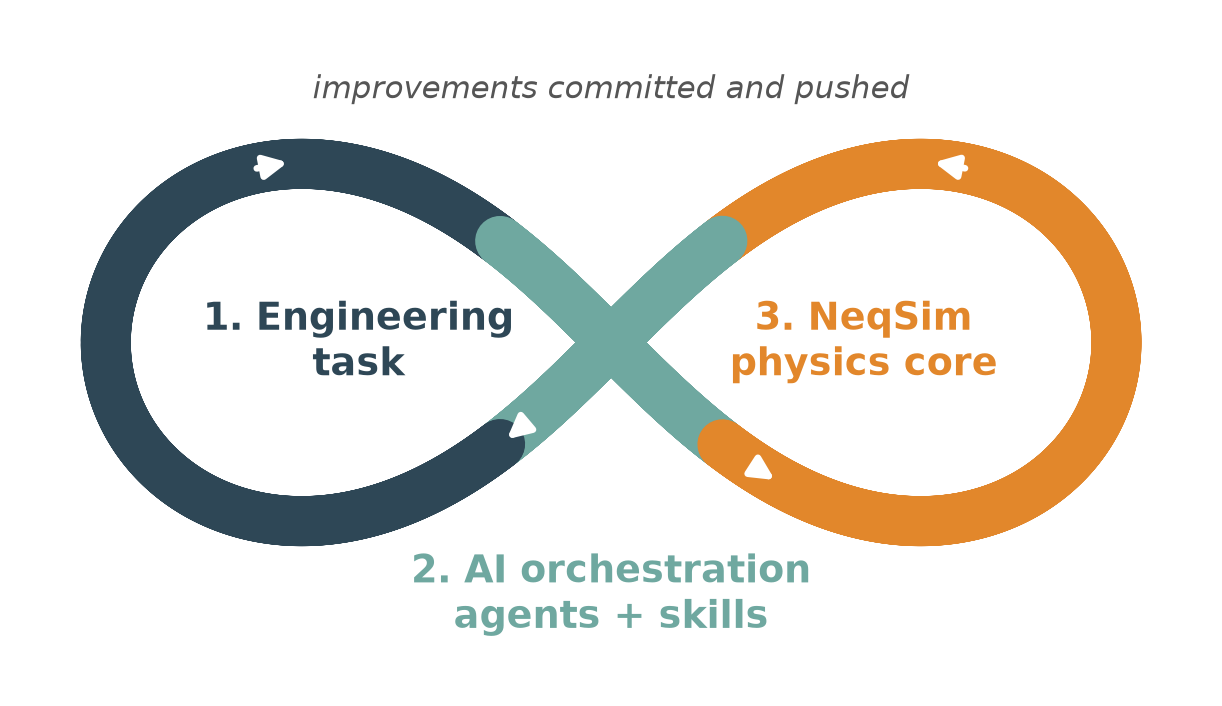
Each folder in the workspace is an independent repository; commit in the one that owns the fix:
| What you learned | Repo | Change |
|---|---|---|
| Missing/wrong calculation, equipment, property | equinor/neqsim |
Java + JUnit, mvnw spotless:apply, PR |
| Wrong API recipe, gotcha, unit trap, better pattern | neqsim-community-skills / neqsim-enterprise-skills |
edit SKILL.md |
| Wrong skill choice, missed hand-off, bad routing | neqsim-community-agents / neqsim-enterprise-agents |
edit *.agent.md |
| Useful new multi-agent pipeline | agents repo | record as a composition pattern |
| Documentation error or gap hit on the way | repo owning the doc | fix in the same PR |
cd <repo that owns the fix>
git checkout -b task/<slug>
git add <changed files>
git commit -m "<what the task taught>"
git push -u origin task/<slug>
gh pr create --fill
Never push task output (evidence, notebooks, results, reports) or company data
into a code repo — only the reusable distillation. Record each change in
step1_scope_and_research/neqsim_improvements.md and in results.json under
improvements, and refresh your local install afterwards with
neqsim agent install --all --vscode --force.
Tip — keep every repo in one VS Code workspace.
File → Add Folder to Workspace...forneqsim, the agent/skill repos, and your task folder (which is not a clone), thenFile → Save Workspace As.... Copilot Chat then sees the skill, the agent definition, the NeqSim source, and the task in the same conversation, which is what makes this phase a two-minute step.
Task Classification
Every NeqSim task falls into one of seven types. Each has a different starting point, verification strategy, and AI agent.
Type A: Property Calculation
“What is the density / viscosity / JT coefficient of this fluid?”
| Aspect | Detail |
|---|---|
| Start from | Fluid creation pattern in CONTEXT.md |
| EOS choice | See EOS Selection table in CONTEXT.md |
| Code goes in | Test (src/test/) or notebook (examples/notebooks/) |
| Verify by | Compare against NIST, experiment, or published correlations |
| AI agent | @thermo-fluid |
SystemInterface fluid = new SystemSrkEos(273.15 + 25.0, 60.0);
fluid.addComponent("methane", 1.0);
fluid.setMixingRule("classic");
ThermodynamicOperations ops = new ThermodynamicOperations(fluid);
ops.TPflash();
fluid.initProperties();
System.out.println("Density: " + fluid.getDensity("kg/m3"));
If the property method doesn’t exist: See Extending the Physics Engine below.
Type B: Process Simulation
“Size a 3-stage compression train” / “Model a TEG dehydration unit”
| Aspect | Detail |
|---|---|
| Start from | Process pattern in CONTEXT.md |
| Look at | src/test/java/neqsim/process/ for similar flowsheets |
| Code goes in | Notebook (best for presentation) or test (best for regression) |
| Verify by | Mass/energy balance, physical reasonableness |
| AI agent | @solve-process or @process-model |
Key patterns:
- Equipment connects via streams:
new Compressor("comp", sep.getGasOutStream()) ProcessSystem.run()handles all sequencing- Use
Recyclefor recirculation loops,Adjusterfor spec-matching - Get results:
equipment.getOutletStream().getFlowRate("kg/hr")
If the equipment doesn’t exist: See the extending-equipment guide at
docs/development/extending_process_equipment.md.
Type C: PVT Study
“Run CME / CVD / differential liberation on this oil”
| Aspect | Detail |
|---|---|
| Start from | src/main/java/neqsim/pvtsimulation/simulation/ |
| Experiments | CME, CVD, DL, SaturationPressure, GOR, SwellingTest, MMP |
| Verify by | Compare against lab data |
| AI agent | @pvt-simulation |
Type D: Standards Calculation
“Calculate Wobbe index, GCV, hydrocarbon dew point per ISO 6976”
| Aspect | Detail |
|---|---|
| Start from | src/main/java/neqsim/standards/gasquality/ |
| Verify by | Standard reference values, round-robin test results |
| AI agent | @gas-quality |
Type E: New Feature / Bug Fix
“Add anti-surge to the compressor” / “Fix the CPA solver for CO2-water”
| Aspect | Detail |
|---|---|
| Find the class | src/main/java/neqsim/process/equipment/<package>/ |
| Read the interface | *Interface.java for method contracts |
| Write tests first | Mirror location in src/test/java/neqsim/ |
| Verify by | .\mvnw.cmd test -Dtest=YourTest then checkstyle:check |
| AI agent | @neqsim-test for test writing |
Type F: Mechanical Design
“Wall thickness per DNV-OS-F101 for a 20-inch subsea pipeline”
| Aspect | Detail |
|---|---|
| Pattern | Mechanical Design section in .github/copilot-instructions.md |
| Design data | src/main/resources/designdata/ |
| AI agent | @mechanical-design |
Type G: Workflow (Multi-Discipline)
“Field development concept selection for deepwater gas” / “Design basis study per NORSOK”
| Aspect | Detail |
|---|---|
| Scale | Comprehensive — multiple standards, multiple disciplines |
| Scope | task_spec.md is critical — define ALL standards, methods, deliverables upfront |
| Notebooks | Multiple numbered notebooks per discipline (01_reservoir_fluid, 02_pipeline, etc.) |
| Report | Full HTML with navigation sidebar + Word summary |
| AI agent | @solve-task (orchestrates specialist agents) |
Type G tasks span multiple engineering disciplines and produce a comprehensive assessment. The HTML report becomes a navigable multi-section document linking all sub-analyses. These are the framework’s most powerful use case — Class A/B field development studies, technology screening, concept evaluation.
Extending the Physics Engine Mid-Task
This is the key advantage of working inside the repo. When you hit a gap — a missing property, a missing equipment type, a missing correlation — you don’t stop and file an issue. You add it.
Decision: Use vs. Extend
Can I solve this with existing methods?
  YES → Write a test/notebook using current API
  NO  → What's missing?
    ├── A property method    → extend physicalproperties/ or thermo/
    ├── A process equipment  → extend process/equipment/
    ├── A thermo model/EOS   → extend thermo/system/ + phase/ + component/
    ├── A PVT experiment     → extend pvtsimulation/
    └── A standard calc      → extend standards/
Pattern: Adding a Property Method
- Find the right layer — Properties live at three levels:
- System level:
SystemThermo→getDensity(),getEnthalpy() - Phase level:
Phase→getViscosity(),getConductivity() - Component level:
Component→getFugacityCoefficient()
- System level:
-
Read the existing method closest to what you need
- Add your method, following the naming convention:
// In the Phase class or PhysicalProperties class public double getMyNewProperty(String unit) { // calculation... } -
Write a test validating against known values
- Use it in the original task
See docs/development/extending_physical_properties.md for the full guide.
Pattern: Adding Process Equipment
- Choose base class:
TwoPortEquipment(single in/out) orProcessEquipmentBaseClass - Implement
run(UUID id)with the physics - Wire streams in the constructor
- Add to
ProcessSystemand test - See
docs/development/extending_process_equipment.mdfor details
Pattern: Adding a Thermodynamic Model
- Create three classes:
SystemYourEos,PhaseYourEos,ComponentYourEos - Override EOS parameters (a, b, alpha function)
- Register characterization models
- See
docs/development/extending_thermodynamic_models.mdfor details
How AI Agents Coordinate
The 12 specialist agents in .github/agents/ are designed for specific task
types. They share the same codebase context but differ in what they optimize for.
Agent Selection Guide
| Agent | When to Use | Output |
|---|---|---|
@thermo-fluid |
Fluid setup, EOS selection, flash, properties | Java code or notebook cell |
@solve-process |
Complete simulation task → working notebook | Full Jupyter notebook |
@process-model |
Process flowsheet design, equipment sizing | Process code |
@pvt-simulation |
PVT lab experiments | PVT results + plots |
@gas-quality |
Gas quality per ISO/GPA standards | Standards results |
@mechanical-design |
Wall thickness, structural design | Design report JSON |
@neqsim-test |
Writing regression/unit tests | JUnit 5 test class |
@notebook-example |
Creating example notebooks | Jupyter notebook |
@flow-assurance |
Hydrates, wax, corrosion, slugging | Analysis + mitigation |
@safety-depressuring |
Depressurization, PSV, fire cases | Safety analysis |
@documentation |
Wiki pages, guides, cookbooks | Markdown files |
Chaining Agents
Complex tasks often need multiple agent capabilities. The general Copilot Chat
(without an @agent prefix) can do everything — read, write, test, extend.
Specialist agents are shortcuts for well-defined task shapes.
Example of a multi-step task:
1. @thermo-fluid  → "Create a CPA fluid for gas with 5% MEG and water"
2. @solve-process → "Build a TEG dehydration unit using that fluid"
3. @neqsim-test   → "Write regression tests for the dehydration results"
What the AI Can See
The AI reads actual Java source files, so it:
- Verifies method signatures before calling them (no hallucinated APIs)
- Reads existing tests to match coding style
- Checks
TASK_LOG.mdfor prior solutions - Follows
copilot-instructions.mdrules (Java 8, JavaDoc, checkstyle) - Can run
mvnw.cmd testand read the output
What the AI Cannot Do (Limitations)
- No persistent memory across sessions —
TASK_LOG.mdis the workaround - Cannot run the JVM — it writes code and runs Maven, but doesn’t inspect runtime state interactively (use Jupyter notebooks for interactive exploration)
- May get physics wrong — always verify numbers against known references
- Cannot access external data — if you need lab data or NIST values, paste them in
Working with Reference PDFs and Engineering Drawings
Place PDFs (papers, standards, data sheets, P&IDs) in step1_scope_and_research/references/.
Use devtools/pdf_to_figures.py to convert pages to PNG images that AI tools can analyze:
# Convert all PDFs in the references folder
python devtools/pdf_to_figures.py step1_scope_and_research/references/ --outdir figures/

# Convert specific pages from a single PDF
python devtools/pdf_to_figures.py path/to/document.pdf --pages 1 3 5 --outdir figures/

# Higher DPI for detailed engineering drawings
python devtools/pdf_to_figures.py path/to/drawing.pdf --dpi 300 --outdir figures/
Then use view_image on the extracted PNGs to:
- Read engineering drawings, P&IDs, and process flow diagrams
- Extract data from charts, graphs, and performance curves
- Analyze equipment layouts and piping arrangements
- Digitize data tables and stream conditions from scanned documents
- Review compressor maps, pump curves, and valve characteristics
This is especially useful for:
- Design basis documents — extract operating conditions, fluid compositions
- Vendor data sheets — read equipment specifications, performance curves
- Standards documents — capture design formulas, factor tables, limit values
- Lab reports — extract PVT data, fluid analysis results
- Field drawings — understand existing facility layout for brownfield studies
The Develop-While-Solving Workflow in Detail
This section walks through a realistic example of solving an engineering task while simultaneously improving the NeqSim API.
Example: “Calculate JT cooling across a valve for a rich gas”
Step 1 — Orient
AI reads CONTEXT.md, searches TASK_LOG.md for “Joule-Thomson” or “JT” or
“valve” or “isenthalpic”. Finds no prior solution.
Step 2 — Classify
This is a Type A (Property) + Type B (Process) hybrid. The JT effect is a thermodynamic property; the valve is process equipment.
Step 3 — Investigate
AI searches for existing valve tests:
grep_search: "ThrottlingValve" in src/test/java/neqsim/
→ finds ValveTest.java with basic valve operations
AI reads the ThrottlingValve class to check the API:
ThrottlingValve valve = new ThrottlingValve("JT Valve", stream);
valve.setOutletPressure(pressureOut);
// run() does isenthalpic flash internally
Step 4 — Solve
AI writes a test:
@Test
void testJTCoolingRichGas() {
    SystemInterface fluid = new SystemPrEos(273.15 + 40.0, 200.0);
    fluid.addComponent("methane", 0.70);
    fluid.addComponent("ethane", 0.10);
    fluid.addComponent("propane", 0.08);
    fluid.addComponent("n-butane", 0.05);
    fluid.addComponent("n-pentane", 0.03);
    fluid.addComponent("CO2", 0.04);
    fluid.setMixingRule("classic");
    fluid.setMultiPhaseCheck(true);

    ProcessSystem process = new ProcessSystem();
    Stream feed = new Stream("feed", fluid);
    feed.setFlowRate(50000.0, "kg/hr");
    process.add(feed);

    ThrottlingValve valve = new ThrottlingValve("JT", feed);
    valve.setOutletPressure(50.0, "bara");
    process.add(valve);

    process.run();

    double inletT = feed.getTemperature("C");
    double outletT = valve.getOutletStream().getTemperature("C");
    double cooling = inletT - outletT;

    assertTrue(cooling > 0, "JT cooling should be positive for this gas");
    assertTrue(cooling < 50, "JT cooling should be < 50°C");
    // JT coefficient ~ 0.3–0.5 K/bar for this gas
    double jtCoeff = cooling / (200.0 - 50.0);
    assertTrue(jtCoeff > 0.1 && jtCoeff < 1.0);
}
Step 5 — Run
.\mvnw.cmd test -Dtest=ValveJTTest
Tests pass. Results: inlet 40°C, outlet -5°C, JT cooling = 45°C, coefficient = 0.30 K/bar. Physically reasonable for a rich gas.
Step 6 — Extend (if needed)
Suppose you also want the JT coefficient as a direct API call and it doesn’t exist on the fluid. You would:
- Add
getJouleThomsonCoefficient()toSystemThermo.java -
Implement using $\mu_{JT} = \frac{1}{C_p}\left(T\frac{\partial V}{\partial T}\bigg _P - V\right)$ - Write a test comparing against the numerical result from the valve
- Now the next person who needs $\mu_{JT}$ can just call the method
Step 7 — Log
Add to TASK_LOG.md:
### 2026-03-01 — JT cooling for rich gas across valve
**Type:** A+B (Property + Process)
**Keywords:** Joule-Thomson, JT, valve, isenthalpic, cooling, rich gas
**Solution:** src/test/java/neqsim/process/equipment/valve/ValveJTTest.java
**Notes:** Used SystemPrEos. JT coefficient ≈ 0.30 K/bar at 200 bar.
Rich gas (C1-C5 + CO2) cools from 40°C to -5°C expanding to 50 bar.
Finding Similar Solved Problems
Before writing anything, search for prior solutions:
1. TASK_LOG.md     → keyword search for the topic
2. Tests           → grep in src/test/java/neqsim/
3. Notebooks       → ls examples/notebooks/
4. Wiki            → docs/wiki/ (60+ topic files)
5. Reference index → docs/REFERENCE_MANUAL_INDEX.md
Search Commands
# Search task log
Select-String -Path "docs\development\TASK_LOG.md" -Pattern "compressor|compression"

# Search tests
Select-String -Path "src\test\java\neqsim\**\*.java" -Pattern "separator" -Recurse |
  Select-Object -First 10

# List example notebooks
Get-ChildItem examples\notebooks\*.ipynb | Select-Object Name
Verification Checklist
Before considering a task done:
- Compiles:
.\mvnw.cmd compilepasses - Tests pass:
.\mvnw.cmd test -Dtest=YourTestgreen - Physics check: Are the numbers physically reasonable?
- Temperatures between -273°C and ~1000°C
- Pressures positive
- Mass balance closes (in = out ± 0.1%)
- Energy balance closes
- Densities in expected range (gas: 1–200 kg/m3, liquid: 500–1500 kg/m3)
- Compressor outlet hotter than inlet
- JT cooling positive for most gases
- Java 8: No
var,List.of(),String.repeat(), text blocks - Style:
.\mvnw.cmd checkstyle:checkpasses - JavaDoc: All methods documented with
@param,@return,@throws - Logged: Entry added to
docs/development/TASK_LOG.md - Figures saved: All plots saved to
figures/directory (not just displayed inline) - Benchmark validation: Separate benchmark notebook with comparison against reference data
- Report generated (if deliverable): Word document builds end-to-end via
python generate_report.py - Task folder complete: All 3 steps documented in
task_solve/YYYY-MM-DD_description/ - Reusable outputs promoted: Tests, notebooks, or API extensions moved back into the repo
- PR created (if applicable): Reusable outputs contributed via Pull Request
- Documentation updated: Errors fixed, missing docs added, improvements included in PR
Engineering Rigor: Data Flow Between Steps
A strong engineering workflow is not just three steps — it’s a connected pipeline where each step feeds data into the next. The task-solving framework enforces this connection through two mechanisms:
The Data Bridge: results.json
The notebook in Step 2 produces a results.json file that the report generator
in Step 3 reads automatically. This eliminates manual copy-paste of results
into reports and ensures the report always reflects the latest simulation run.
  Step 1                 Step 2                   Step 3
  task_spec.md  ──────>  notebook reads spec  ──>  generate_report.py
                         notebook produces   ──>    auto-reads
                         results.json              results.json
                         figures/*.png             figures/*.png
How it works:
- Fill
task_spec.mdwith standards, methods, and acceptance criteria - The notebook reads the spec and runs the simulation
- At the end of the notebook, save structured results:
import json, os results = { "key_results": { "outlet_temperature_C": -18.5, "pressure_drop_bar": 3.2, }, "validation": { "mass_balance_error_pct": 0.01, "acceptance_criteria_met": True, }, "approach": "Used SRK EOS with classic mixing rule...", "conclusions": "The JT cooling achieves the required dew point...", } with open(os.path.join(os.path.dirname(os.getcwd()), "results.json"), "w") as f: json.dump(results, f, indent=2) - Run
python step3_report/generate_report.py— produces a professional engineering report in Word and HTML, named after the report title (e.g.Hydrate_margin_for_the_export_line.docx). The Results, Validation, and Scope sections auto-populate fromresults.jsonandtask_spec.md - Scientific papers are only generated when explicitly requested:
python step3_report/generate_report.py --paper(adds<Title>_Paper.docx+.html) - Built-in styled formatting: The template automatically renders these sections
when the corresponding keys exist in
results.json:- Benchmark Validation (
benchmark_validation): PASS/FAIL table with color coding - Uncertainty Analysis (
uncertainty): input parameters, P10/P50/P90 distribution, tornado table - Risk Assessment (
risk_evaluation): summary card with risk badges, color-coded risk table - All four outputs (report and paper, Word and HTML) share the same formatters
- Benchmark Validation (
Quality Gates
The workflow enforces quality gates between steps:
Gate 1: Step 1 → Step 2 (scope must be defined before analysis)
- task_spec.md must have at least: EOS/method, acceptance criteria, and operating conditions filled in
- For Standard/Comprehensive tasks: standards, deliverables, and envelope defined
Gate 2: Step 2 → Step 3 (results must be validated before reporting)
- Every notebook cell executes without errors
results.jsonexists withkey_resultsandvalidationsections- All acceptance criteria from task_spec.md have been checked
- All deliverables from task_spec.md are produced
- Figures saved to
figures/as PNG - Benchmark validation notebook exists with comparison table and deviation plot
benchmark_validationsection populated in results.json- Consistency check PASSED: Run
python devtools/consistency_checker.py task_solve/YYYY-MM-DD_slug/to detect inconsistencies across notebooks. Fix CRITICAL issues before generating reports. Common issues: numerical mismatches, scope mismatches (volumetric vs mass-based calculations), contradictory conclusions, or external study data measuring different quantities than notebooks.
Structured Validation
The step2_analysis/notes.md template includes a validation summary table
that maps directly to the validation section in results.json:
| Check | Status | Value / Note |
|---|---|---|
| Mass balance | PASS | 0.01% error |
| Energy balance | PASS | 0.3% error |
| Acceptance criteria met | PASS | All 3 criteria satisfied |
For tasks that involve comparison with reference data, the template also includes a comparison table:
| Source | Parameter | Reference | NeqSim | Deviation |
|---|---|---|---|---|
| NIST | Density kg/m3 | 820.3 | 818.7 | 0.2% |
Report Generation Best Practices
The report is customised per task through results.json and
step3_report/report_sections.json, never by editing generate_report.py. Common failure
modes and how to avoid them:
1. Section completeness: The default template only renders Results, Validation, Conclusions, and References. For Standard/Comprehensive tasks, you must add sections for Benchmark Validation, Uncertainty Analysis, and Risk Evaluation. Each section requires changes in three places:
build_sections()— define the section heading, content, and a flag (e.g.has_benchmark)build_word_report()— Word-specific rendering (tables viaadd_word_table(), figures)build_html_report()— HTML-specific rendering (styled tables, base64-embedded images)
2. Recommended section numbering for a complete task report:
| # | Section | Data Source | Figures |
|---|---|---|---|
| 1 | Executive Summary | report_sections.json manual_sections |
— |
| 2 | Problem Description | report_sections.json manual_sections |
— |
| 3 | Scope & Standards | task_spec.md | — |
| 4 | Approach | results.json or MANUAL | — |
| 5 | Results | results.json key_results + tables | Main notebook figs |
| 6 | Validation Summary | results.json validation | — |
| 7 | Benchmark Validation | results.json benchmark_validation | benchmark_*.png |
| 8 | Uncertainty Analysis | results.json uncertainty | uncertainty_*.png |
| 9 | Risk Evaluation | results.json risk_evaluation | risk_matrix.png |
| 10 | Conclusions | results.json or report_sections.json | — |
| 11 | References | results.json references | — |
3. Figure captions: Every PNG in figures/ should have a caption entry in
results.json["figure_captions"]. Use the exact filename as key. Figures from
all notebooks (main, benchmark, uncertainty) must be captioned.
4. Stale numbers: When design parameters change iteratively, hardcoded text in
step3_report/report_sections.json (manual_sections.executive_summary,
manual_sections.conclusions) becomes stale. Never edit or fork
generate_report.py for task content; run it with neqsim report <task_dir>. Prefer writing conclusions programmatically from results.json where possible.
At minimum, re-verify all hardcoded numbers after each parameter change.
5. Figure placement: Embed figures in their relevant section, not all at the end of Results. Use section flags to control which figures appear where.
Benchmark Validation (MANDATORY)
Every task MUST include a dedicated benchmark validation notebook that compares NeqSim results against independent reference data. This is a separate notebook from the main analysis — it focuses exclusively on demonstrating that the calculations are trustworthy.
Why Benchmark?
Without benchmarking, results are unverifiable assumptions. Benchmarking:
- Builds confidence that the EOS/model is appropriate for the conditions
- Catches systematic errors (wrong units, missing terms, incorrect correlations)
- Provides defensible evidence for engineering decisions
- Creates reusable validation datasets for future regression testing
Benchmark Sources by Task Type
| Task Type | Primary Benchmark Sources | Secondary Sources |
|---|---|---|
| A — Property | NIST Webbook, DIPPR, experimental data | Published correlations, other simulators |
| B — Process | Textbook worked examples, published simulation cases | Vendor datasheets, plant operating data |
| C — PVT | Lab PVT reports, ECLIPSE/PVTsim results | Published fluid studies, slim tube data |
| D — Standards | Standard worked examples (ISO, AGA, EN) | Certified lab results, round-robin results |
| E — Feature | Unit test baselines, solver convergence benchmarks | Literature solver comparisons |
| F — Design | Hand calculations, vendor catalogs, design tables | Published case studies, design codes |
| G — Workflow | Industry benchmarks, analogous fields, public reports | Cost databases (Rystad, IHS), government data |
Benchmark Notebook Structure
Name: XX_benchmark_validation.ipynb (numbered to fit in the notebook sequence)
- Introduction — State what is being benchmarked and the acceptance tolerance
- Reference data — Tabulate benchmark values with full source citations
- NeqSim calculation — Reproduce same conditions and extract results
-
Comparison table — Side-by-side: Benchmark NeqSim Deviation % - Parity plot / deviation chart — Visual comparison saved to
figures/ - Conclusion — Whether results are within tolerance; explain any deviations > 5%
Minimum Requirements
- At least 3 benchmark data points (different conditions, components, or cases)
- A parity plot or deviation bar chart saved to
figures/ -
A summary comparison table with: Parameter Benchmark NeqSim Deviation % Source - Results in
results.jsonunder"benchmark_validation"key:
results["benchmark_validation"] = {
    "benchmark_source": "NIST Webbook, Reference Paper Smith et al. (2019)",
    "comparisons": [
        {"parameter": "density_kg_m3", "benchmark": 820.5, "neqsim": 818.3,
         "deviation_pct": 0.27, "condition": "25C, 60 bar"},
        {"parameter": "Cp_J_kgK", "benchmark": 2150.0, "neqsim": 2180.0,
         "deviation_pct": 1.4, "condition": "25C, 60 bar"},
    ],
    "max_deviation_pct": 1.4,
    "all_within_tolerance": True,
    "tolerance_pct": 5.0
}
Examples of Good Benchmarks
Thermodynamic property:
Compare methane density from NeqSim (SRK EOS) against NIST Webbook at 10 points across 1–200 bar at 25°C. Plot parity chart. Max deviation: 2.1%.
Process simulation:
Reproduce the 3-stage compression example from Smith & Van Ness (Introduction to Chemical Engineering Thermodynamics, Example 7.9). Compare outlet temperatures and work per stage. Max deviation: 0.8%.
CAPEX estimation:
Compare SURFCostEstimator output for a 6-well NCS tieback against Rystad Energy benchmark data and Equinor project analogues. Deviation: +8% (conservative, as expected for early-phase estimates).
Norwegian tax model:
Reproduce the NPD Resource Report worked example for a generic NCS field. Compare year-by-year tax, NPV, and government take. Max deviation: 0.1% (rounding differences only).
Reference Fluid Compositions
The task_spec.md template includes common fluid compositions (lean gas,
rich gas, wet gas, CO2 stream) that users can pick as starting points. This
eliminates the common problem of spending time looking up typical compositions
and ensures consistency across tasks.
Making Solutions Reusable
Every solved task should be findable by the next person (or AI session). Choose one or more of these output formats:
Option 1: Write a Test (always do this)
Put a test in src/test/java/neqsim/<matching_package>/. Tests are:
- Searchable (grep finds them)
- Runnable (proof the solution works)
- Regression-proof (CI catches breakage)
- Self-documenting (the code is the example)
Option 2: Write a Notebook (best for process engineers)
Put a notebook in examples/notebooks/ with:
- Clear title and description
- Colab badge for one-click running from a browser
- Devtools setup cell for repository/task notebooks (
neqsim_dev_setup.py,ns.*) - Markdown cells explaining the engineering reasoning
- Save all figures to disk — every plot should be saved as a PNG/SVG file alongside the notebook so results survive kernel restarts and can be reused in reports (see Option 5 below)
Figure-saving pattern (do this for every plot cell):
import matplotlib
matplotlib.use('Agg')          # non-interactive backend, no GUI needed
import matplotlib.pyplot as plt
import os

FIG_DIR = os.path.join(os.path.dirname(os.path.abspath('__file__')), 'figures')
os.makedirs(FIG_DIR, exist_ok=True)

fig, ax = plt.subplots(figsize=(10, 6))
ax.plot(time_hrs, temperature_C, 'b-', linewidth=2)
ax.set_xlabel('Time (hours)')
ax.set_ylabel('Temperature (°C)')
ax.set_title('Gas Temperature During Filling')
ax.grid(True, alpha=0.3)
fig.tight_layout()
fig.savefig(os.path.join(FIG_DIR, 'filling_temperature.png'), dpi=150)
plt.close(fig)                 # free memory, avoid display issues
print(f"Saved: {os.path.join(FIG_DIR, 'filling_temperature.png')}")
Key rules for figure saving:
- Use
matplotlib.use('Agg')at the top of the notebook to avoid GUI backend issues when running headless or via scripts - Always call
plt.close(fig)after saving to prevent memory leaks in long simulation loops - Save to a
figures/subdirectory next to the notebook - Use descriptive filenames:
filling_temperature.png, notfig1.png - Print the saved path so the report generator can find them
Option 3: Add a Doc Page (for recurring questions)
Add docs/wiki/<topic>.md or docs/cookbook/<recipe>.md.
Update docs/REFERENCE_MANUAL_INDEX.md with the link.
Option 4: Log It (minimum bar — always do this)
Add an entry to docs/development/TASK_LOG.md. This is the searchable
memory that survives across AI sessions.
Option 5: Generate a Word Report (best for deliverables)
For engineering studies and client deliverables, generate a Word document
using python-docx. This was proven on the CNG Tank Modelling project
(examples/CNGtankmodelling/generate_report.py).
Architecture: a standalone report-generator script:
your_project/
├── simulation_notebook.ipynb   # Interactive exploration
├── generate_report.py          # Headless: runs sims + writes .docx
├── figures/                    # PNG files saved by both notebook and script
└── YourReport.docx             # Output
Why a separate script instead of the notebook?
- Reproducible: runs end-to-end without Jupyter kernel state
- Headless: works on CI/CD or via
python generate_report.py - Figures and text stay in sync because both are generated in one pass
- Version-controllable (
.pydiffs cleanly;.ipynbJSON does not)
Report generator pattern:
import matplotlib
matplotlib.use('Agg')  # MUST be before any pyplot import
import matplotlib.pyplot as plt
from docx import Document
from docx.shared import Inches, Pt
from docx.enum.text import WD_ALIGN_PARAGRAPH
import os

# ── Constants ────────────────────────────────────────────
FIG_DIR = os.path.join(os.path.dirname(__file__), 'figures')
os.makedirs(FIG_DIR, exist_ok=True)

# ── 1. Run simulations ──────────────────────────────────
def run_baseline():
    """Run the baseline simulation and return results dict."""
    # ... NeqSim simulation code ...
    return {'time': time_list, 'temperature': temp_list, 'pressure': pres_list}

# ── 2. Generate figures ─────────────────────────────────
def make_temperature_figure(results):
    """Create and save temperature plot, return path."""
    fig, ax = plt.subplots(figsize=(10, 6))
    ax.plot(results['time'], results['temperature'], 'b-', lw=2)
    ax.set_xlabel('Time (hours)')
    ax.set_ylabel('Temperature (°C)')
    ax.set_title('Gas Temperature')
    ax.grid(True, alpha=0.3)
    path = os.path.join(FIG_DIR, 'temperature.png')
    fig.savefig(path, dpi=150, bbox_inches='tight')
    plt.close(fig)
    return path

# ── 3. Build Word document ──────────────────────────────
def build_report(results, fig_paths):
    """Assemble the Word document."""
    doc = Document()
    doc.add_heading('Simulation Report', level=0)

    doc.add_heading('1. Introduction', level=1)
    doc.add_paragraph('This report presents the simulation results for ...')

    doc.add_heading('2. Results', level=1)
    doc.add_paragraph(
        f"Peak temperature: {max(results['temperature']):.1f} °C"
    )
    doc.add_picture(fig_paths['temperature'], width=Inches(6.0))
    last = doc.paragraphs[-1]
    last.alignment = WD_ALIGN_PARAGRAPH.CENTER

    doc.save('MyReport.docx')
    print('Report saved: MyReport.docx')

# ── 4. Main ─────────────────────────────────────────────
if __name__ == '__main__':
    results = run_baseline()
    fig_paths = {
        'temperature': make_temperature_figure(results),
    }
    build_report(results, fig_paths)
Key lessons from the CNG report project:
| Lesson | Detail |
|---|---|
matplotlib.use('Agg') first |
Must come before import matplotlib.pyplot. Otherwise the script hangs or crashes without a display. |
| Separate sim from plotting | Run all simulations first, collect results dicts, then generate all figures. Keeps the script restartable. |
| Use f-strings for dynamic text | Report text should reference computed values (f"{max_temp:.1f} °C") so the document stays in sync with simulation. |
plt.close(fig) always |
Without this, memory grows with each figure in a loop (sensitivity studies generate many). |
bbox_inches='tight' |
Prevents axis labels from being clipped in the saved PNG. |
| Handle simulation failures | Wrap each simulation batch in try/except so one failure doesn’t kill the whole report. Log the error and skip. |
dpi=150 is enough |
Higher DPI makes the .docx file huge with no visible quality gain in print. |
| Save figures AND embed them | Save to figures/ for reuse, and embed in the .docx. Both are needed. |
Rendering equations natively in Word (OMML):
Word supports native Office Math Markup Language (OMML) equations that render
beautifully — the same typeset quality as the Word equation editor. Use the
latex2mathml + XSLT approach to convert LaTeX strings into OMML XML and
insert them directly into the document.
import latex2mathml.converter
from lxml import etree
from docx.oxml.ns import qn

# ── XSLT stylesheet (ships with Word / Office) ──────────
# Download MML2OMML.XSL from your Office install or from:
# C:\Program Files\Microsoft Office\root\Office16\MML2OMML.XSL
# or bundle it with the project.
XSLT_PATH = os.path.join(os.path.dirname(__file__), 'MML2OMML.XSL')
xslt = etree.parse(XSLT_PATH)
transform = etree.XSLT(xslt)

def add_latex_equation(paragraph, latex_str):
    """Insert a LaTeX equation as a native Word OMML equation.

    Args:
        paragraph: A python-docx Paragraph object to append the equation to.
        latex_str: LaTeX math string WITHOUT delimiters (no $ or $$).
                   Example: r'P = \\frac{RT}{V - b}'
    """
    # 1. LaTeX → MathML
    mathml_str = latex2mathml.converter.convert(latex_str)

    # 2. MathML → OMML via Microsoft's XSLT
    mathml_tree = etree.fromstring(mathml_str.encode('utf-8'))
    omml_tree = transform(mathml_tree)

    # 3. Insert into paragraph's XML
    for omml_element in omml_tree.getroot():
        paragraph._element.append(omml_element)

# ── Usage ────────────────────────────────────────────────
doc = Document()
doc.add_heading('Energy Balance', level=1)

p = doc.add_paragraph('The first law for a constant-volume system:')
p = doc.add_paragraph()  # new paragraph for equation
add_latex_equation(p, r'm \\, c_v \\, \\frac{dT}{dt} = \\dot{Q} - \\dot{m} \\, h')

p = doc.add_paragraph('The SRK equation of state:')
p = doc.add_paragraph()
add_latex_equation(p, r'P = \\frac{RT}{V-b} - \\frac{a(T)}{V(V+b)}')

doc.save('report_with_equations.docx')
The equations above render in Word exactly like the built-in equation editor — fully scalable, editable, and print-quality. No images, no blurry screenshots.
Setup for OMML equations:
- Install
latex2mathmlandlxml:pip install latex2mathml lxml - Copy
MML2OMML.XSLfrom your Office installation:C:\Program Files\Microsoft Office\root\Office16\MML2OMML.XSLBundle it next to
generate_report.pyso the script is self-contained. -
Common LaTeX expressions for NeqSim reports:
What LaTeX SRK EOS r'P = \frac{RT}{V-b} - \frac{a(T)}{V(V+b)}'Energy balance r'm c_v \frac{dT}{dt} = \dot{Q} - \dot{m} h'Churchill-Chu r'Nu = \left[0.825 + \frac{0.387 Ra^{1/6}}{(1+(0.492/Pr)^{9/16})^{8/27}}\right]^2'Heat transfer r'Q = h A (T_w - T_f)'Compressibility r'Z = \frac{PV}{nRT}'
Dependencies:
pip install python-docx matplotlib latex2mathml lxml
Use neqsim_dev_setup.py for local NeqSim Java classes in notebooks; do not
install the released neqsim package for repository task calculations.
Keeping a Task Alive: Continuous Task Solving
Everything above solves a task once: the report is a snapshot of the data and the model on the day it was written. Some tasks should not stop there — a compressor efficiency study is out of date the week after the next wash, and an optimisation study is worth repeating when the plant changes. For those, make the task living.
A living task keeps its normal three steps and adds a continuous/ folder. A
cycle then runs daily or on demand: it pulls new data, recomputes the KPIs,
checks for drift, updates an improvement ledger and writes a digest. An agent is
launched only when a trigger fires. You review the result and promote a cycle to
the new baseline — nothing changes without a named reviewer.
When to use it
| Situation | Use |
|---|---|
| A one-off question or study | The normal workflow above — no living task needed |
| A finished study that should stay current as data arrives | Monitor cycles: neqsim task-cycle |
| A task that must be solved iteratively until a goal is met, or until improvement is marginal | Solve loop: neqsim task-solve |
The five steps to set one up
- Make it living —
neqsim task-living <task> --brief brief.docxscaffoldscontinuous/and a draft goal from the brief. It never overwrites files. - Confirm the goal — edit
continuous/goal.yaml(objective metric, target, stop rules) and setconfirmed_by. - Write the plan — edit
continuous/cycle_plan.yaml: data sources, KPIs, drift signals with engineering floors, triggers, and task-local stage scripts that run the NeqSim model. - Backtest —
neqsim task-backtest <task> --start ... --end ...replays archived data and checks the monitor finds the events it should, with no false alarms. - Run it — by hand with
neqsim task-cycle <task>/neqsim task-solve <task>, or on a schedule withneqsim task-schedule <task> --daily 05:00 --install.
Scheduled living tasks enforce a Standard-first gate. The generated schedule
runs task-cycle --standard-first, which checks that the initial task solve has
Step 1 research, capability assessment, Step 2 model/notebook/script,
results.json, consistency status, first formal report and
step3_report/WORK_RECORD.md. Missing reports/work records are generated with
the normal neqsim report / neqsim work-record tools when possible. If the
task is still incomplete, the cycle is marked degraded with a
standard_first:* trigger and continuous/standard_first_status.json records
what is missing. This lets a schedule collect evidence, but prevents the hourly
loop from being treated as operational before the first Standard task basis is
finished or explicitly blocked with data gaps.
Then, day to day: read continuous/LIVING_REPORT.md, decide ledger items with
neqsim task-ledger, and promote reviewed cycles with neqsim task-promote.
To learn the loop without company data, create the public reference case —
a synthetic compressor station with three injected faults. Living tasks use the
same task root as all other tasks (neqsim --show-task-root), so a folder name
is enough:
neqsim task-reference-case          # created in your task root
neqsim task-backtest reference_compressor_station --start 2025-10-02 --end 2026-09-30
neqsim task-status                  # every living task in the task root
In Copilot Chat, the continuous-improvement agent does the setup, backtesting and triage for you, and stops before every decision.
Full guide: Continuous Task Solving (Living Tasks) — setup, goal and plan reference, stage scripts, backtesting, scheduling on a laptop or server, headless agents, day-to-day work, company data sources and troubleshooting.
Common Pitfalls
| Mistake | Symptom | Fix |
|---|---|---|
| Forgot mixing rule | Wrong/no results, NaN | fluid.setMixingRule("classic") |
| Temperature in °C to constructor | Wildly wrong properties | Use Kelvin: 273.15 + T_celsius |
| Shared fluid state | Equipment B sees A’s changes | fluid.clone() before branching |
| Duplicate equipment names | Exception from ProcessSystem | Every name must be unique |
| Java 9+ syntax | CI build fails | See forbidden features in CONTEXT.md |
Missing fluid.init(3) |
Properties return 0 or NaN | Always call after flash |
Using getTemperature() as °C |
Off by 273 | Returns Kelvin — subtract 273.15 |
| Wrong mixing rule number for CPA | Convergence failure | Use 10 (numeric) for CPA EOS |
Not setting setMultiPhaseCheck(true) |
Missing liquid phase | Required for water/heavy systems |
Forgot setFlowRate on stream |
Zero flow everywhere | Set before running |
matplotlib.use('Agg') after pyplot |
Script hangs or crashes | Put matplotlib.use('Agg') before any import matplotlib.pyplot |
| Not closing figures in loops | Memory grows, OOM | Always call plt.close(fig) after savefig() |
| Hardcoded results in report text | Report drifts from simulation | Use f-strings: f"{value:.1f}" so text updates automatically |
Saving figures without bbox_inches='tight' |
Axis labels clipped | Add bbox_inches='tight' to savefig() |
| Cascaded tax model instead of independent | Effective tax rate wrong (e.g. 65% instead of 78%) | Norwegian petroleum tax: corporate (22%) + special (56%) on independent taxable incomes |
| CAPEX double-counted in cash flow | NPV too negative, payback too long | Include CAPEX only once — either in investment line OR in operating costs, not both |
| Year-0 includes revenue | NPV inflated | Year 0 is investment only; production revenue starts Year 1 |
| Flat CAPEX lump sum for SURF | Cannot validate or break down costs | Use component-level estimators (SURFCostEstimator, SubseaCostEstimator) |
| Hardcoded exchange rates in formulas | Rate change requires editing every formula | Define USD_TO_NOK = 10.5 as a variable; reference throughout |
| Missing loss carry-forward in tax model | Tax paid in loss years, wrong NPV | Track cumulative tax loss per pool; only pay tax when taxable income > 0 |
| Formula from memory without verification | Incorrect equations compound through calculation | Always verify governing equations against the applicable standard or textbook |
| Old JAR in Python site-packages | from neqsim import jneqsim loads stale class |
Use the devtools setup cell and ns.JClass() so notebooks load workspace classes from target/classes |
| Report generator missing sections | Benchmark/uncertainty/risk data in results.json but absent from report | Add rendering to build_sections(), build_word_report(), AND build_html_report() for each data section |
| Figure captions only from main notebook | Benchmark/uncertainty figures show generic captions | Add ALL figure filenames to results.json["figure_captions"] from every notebook |
| Stale numbers in report_sections.json | Executive summary/conclusions don’t match latest results | Write conclusions in results.json["conclusions"]; update manual_sections when parameters change |
| Design change not propagated to all notebooks | Benchmark/uncertainty results reflect old parameters | Re-run ALL notebooks (restart kernels) when base case parameters change |
| All figures dumped in one report section | 12 figures after Results, none in Benchmark/Uncertainty/Risk | Use section flags (has_benchmark, has_uncertainty, has_risk) to embed figures in their own section |
Copilot Chat Agents
13 specialist agents in .github/agents/:
| Agent | Best For |
|---|---|
@solve-task |
Full 3-step workflow (does everything end-to-end) |
@thermo-fluid |
EOS selection, fluid creation, flash, properties |
@solve-process |
Complete process simulation → working notebook |
@process-model |
Process flowsheet design |
@pvt-simulation |
PVT experiments (CME, CVD, etc.) |
@gas-quality |
Gas quality standards (GCV, Wobbe) |
@mechanical-design |
Wall thickness, ASME/DNV design |
@neqsim-test |
Writing JUnit 5 tests |
@notebook-example |
Creating example notebooks |
@flow-assurance |
Hydrates, wax, corrosion, slugging |
@safety-depressuring |
Depressurization, PSV, fire cases |
@documentation |
Writing docs and wiki pages |
continuous-improvement |
Living tasks: monitor cycles, solve loops, backtests, triage (guide) |
Session Start Template
When starting a new Copilot Chat session, paste this to establish context:
I'm working in the NeqSim repo (Java thermodynamics + process simulation).
Read CONTEXT.md for orientation.
Task: [describe your task here]
Search docs/development/TASK_LOG.md for similar past tasks.
Process Engineer Quick Start
If you’re a process engineer (not a developer):
- Open VS Code with the NeqSim repo
- Open Copilot Chat and type:
@solve-task your engineering question - The agent creates the folder, runs the intake gate, then hands back results + reports
- Find Word and HTML reports in
task_solve/.../step3_report/
For document-heavy studies, ask for an intake pause or create the task manually
with --intake-pause always. During the pause you can add PDFs, Word files,
Excel stream tables, P&IDs, vendor data sheets, standards, or lab reports to
step1_scope_and_research/references/ before notebooks are created.
Alternatively, for manual control:
- Run:
neqsim new-task "your question" --type B --intake-pause always - Open Copilot Chat and paste the prompts from the generated README
- Run
python step3_report/generate_report.pyto create Word + HTML reports
You don’t need to know Java, Maven, or git. The script and agent handle everything.
Using Other AI Tools (OpenAI Codex, Claude Code, Cursor, etc.)
The workflow is not tied to VS Code Copilot Chat. The script, folder structure, templates, and report generator work from any terminal. Any AI coding agent that can read files and run commands can follow the same workflow.
Quick Start for Any AI Agent
-
Create the task folder (from terminal):
neqsim new-task "your task" --type B --intake-pause alwaysThe intake pause is optional, but useful when the task starts from design documents or you want to edit
study_config.yamlbefore analysis begins. - Point the agent to the workflow — paste this prompt:
I'm working in the NeqSim repo (Java thermodynamics + process simulation). Read docs/development/TASK_SOLVING_GUIDE.md for the task-solving workflow. Read the task README at task_solve/YYYY-MM-DD_your_task/README.md. Document input is possible: place source files in task_solve/YYYY-MM-DD_your_task/step1_scope_and_research/references/ before notebooks are created. Follow the 3-step workflow: 1. Fill in step1_scope_and_research/task_spec.md (standards, methods, deliverables) 2. Create a Jupyter notebook in step2_analysis/ using NeqSim 3. Run step3_report/generate_report.py to produce Word + HTML reports Task: [describe your task here] - The AI agent reads the templates, fills in the task spec, creates notebooks, and runs the report generator — same output, different tool.
What Works Everywhere (No VS Code Required)
| Component | How to Use | Works In |
|---|---|---|
neqsim new-task |
Creates task folders | Any terminal |
task_spec.md |
Scope document (plain markdown) | Any editor / AI tool |
| Jupyter notebooks | Simulation code | NeqSim Runner by default; JupyterLab/Colab for interactive debugging |
python generate_report.py |
Produces engineering report in Word + HTML, named after the report title | Any terminal |
python generate_report.py --paper |
Also produces Paper.docx + Paper.html (only when requested) | Any terminal |
git + gh pr create |
Contribute back via PR | Any terminal |
What’s VS Code Copilot-Specific (Optional Convenience)
| Feature | Purpose | Alternative |
|---|---|---|
@solve-task agent |
Automates the full 3-step workflow | Give any AI the prompt above |
Specialist agents (@thermo-fluid, etc.) |
Deep sub-task automation | Use the agent files in .github/agents/ as prompts |
| Notebook cell execution | Run cells from chat | Use neqsim_runner for task notebooks; JupyterLab/Colab for quick debugging |
Tips for Non-VS-Code AI Tools
- OpenAI Codex: Can read repo files, run terminal commands, and write code.
Point it at
TASK_SOLVING_GUIDE.mdand it follows the workflow. - Claude Code: Same approach — give it the workflow prompt and task folder path.
- Cursor: Supports custom instructions — paste the agent instructions from
.github/agents/solve-task.agent.md(orchestrator) and.github/skills/neqsim-task-workflow/SKILL.md(the phase-by-phase procedure) into Cursor’s rules. - Google Colab + AI: Published external examples may use
pip install neqsim, but local task notebooks and runner workflows must useneqsim_dev_setup.py.
End-to-End with OpenAI Codex (Solve Task + Create PR)
Codex can run the full workflow autonomously — from task creation to PR — because:
- It reads
AGENTS.mdat the repo root for project-level instructions - The
.openapi/codex.yamlinstalls Java 8, Maven, Python, andghCLI in the sandbox - It can run terminal commands, create files, execute Python, and use
gh pr create
One-shot prompt for Codex (paste this into Codex Web or CLI):
Solve this engineering task and create a PR with the results:

Task: [describe your task, e.g. "hydrate formation temperature for wet gas at 100 bara"]

Instructions:
1. Read AGENTS.md for project guidance
2. Run: neqsim new-task "[task title]" --type [A-G]
3. Fill step1_scope_and_research/task_spec.md with standards and methods
4. Create a Jupyter notebook in step2_analysis/ using NeqSim devtools setup
5. Run the notebook and validate results
6. Save plots to figures/
7. Update and run step3_report/generate_report.py
8. Copy reusable outputs to proper locations:
   - Notebook → examples/notebooks/
   - Tests → src/test/java/neqsim/
9. Create a PR:
   git checkout -b task/[slug]
   git add examples/notebooks/ src/test/java/ docs/development/TASK_LOG.md
   git commit -m "Add [description] from task: [title]"
   git push -u origin task/[slug]
   gh pr create --title "Add [description]" --body "From task-solving workflow"
Codex Cloud vs Codex CLI:
| Capability | Codex Cloud (chatgpt.com/codex) | Codex CLI (local) |
|---|---|---|
| Java/Maven | Installed via .openapi/codex.yaml |
Uses your local JDK |
| Python/pip | Available by default | Uses your local Python |
gh pr create |
Via Codex’s GitHub integration | Via local gh CLI |
| Network access | Restricted (sandbox) | Sandboxed but configurable |
AGENTS.md |
Read automatically | Read automatically |
| NeqSim mode | pip install neqsim (released, external examples) |
neqsim_dev_setup.py (local task notebooks) |
Key difference: Codex Cloud uses the released neqsim PyPI package, so it
can solve tasks using the existing API but cannot extend the Java source code
mid-task. Use Codex CLI or VS Code Copilot for tasks that require adding new
Java methods (Type E tasks).
Contributing Back via Pull Request
When your task produces reusable outputs (tests, notebooks, docs, API extensions), contribute them back via PR:
# Create a feature branch
git checkout -b task/your-task-name

# Copy and stage reusable outputs (don't commit task_solve/ contents)
git add src/test/java/neqsim/...              # tests
git add examples/notebooks/...                 # notebooks
git add docs/development/TASK_LOG.md           # task log entry

# Commit and push
git commit -m "Add [description] from task: [title]"
git push -u origin task/your-task-name

# Create PR (requires GitHub CLI)
gh pr create --title "Add [description]" --body "From task-solving workflow"
Tip: The
@solve-taskagent can do this for you — just ask “create a PR with the test and notebook from this task”.
Related Documentation
| Document | Purpose |
|---|---|
devtools/new_task.py |
Script to create task folders (auto-bootstraps task_solve/) |
task_solve/README.md |
AI-supported task-solving workflow (3-step process) |
task_solve/TASK_TEMPLATE/ |
Template folder with task_spec, prompts, and report generator |
.github/agents/solve-task.agent.md |
The @solve-task Copilot agent (does everything end-to-end) |
CONTEXT.md |
60-second repo orientation |
| CONTINUOUS_TASK_SOLVING.md | Living tasks: keep a task improving with scheduled cycles |
docs/development/CODE_PATTERNS.md |
Copy-paste code starters |
docs/development/TASK_LOG.md |
Persistent task memory |
docs/development/extending_process_equipment.md |
Adding new equipment |
docs/development/extending_thermodynamic_models.md |
Adding new EOS |
docs/development/extending_physical_properties.md |
Adding property models |
docs/development/jupyter_development_workflow.md |
Jupyter + Java dev loop |
.github/copilot-instructions.md |
Full AI coding rules |